Optimization Guide
Pro Tips
Small adjustments that make a big difference in your stream quality and workflow.
1. Infinite Playback (Loop)
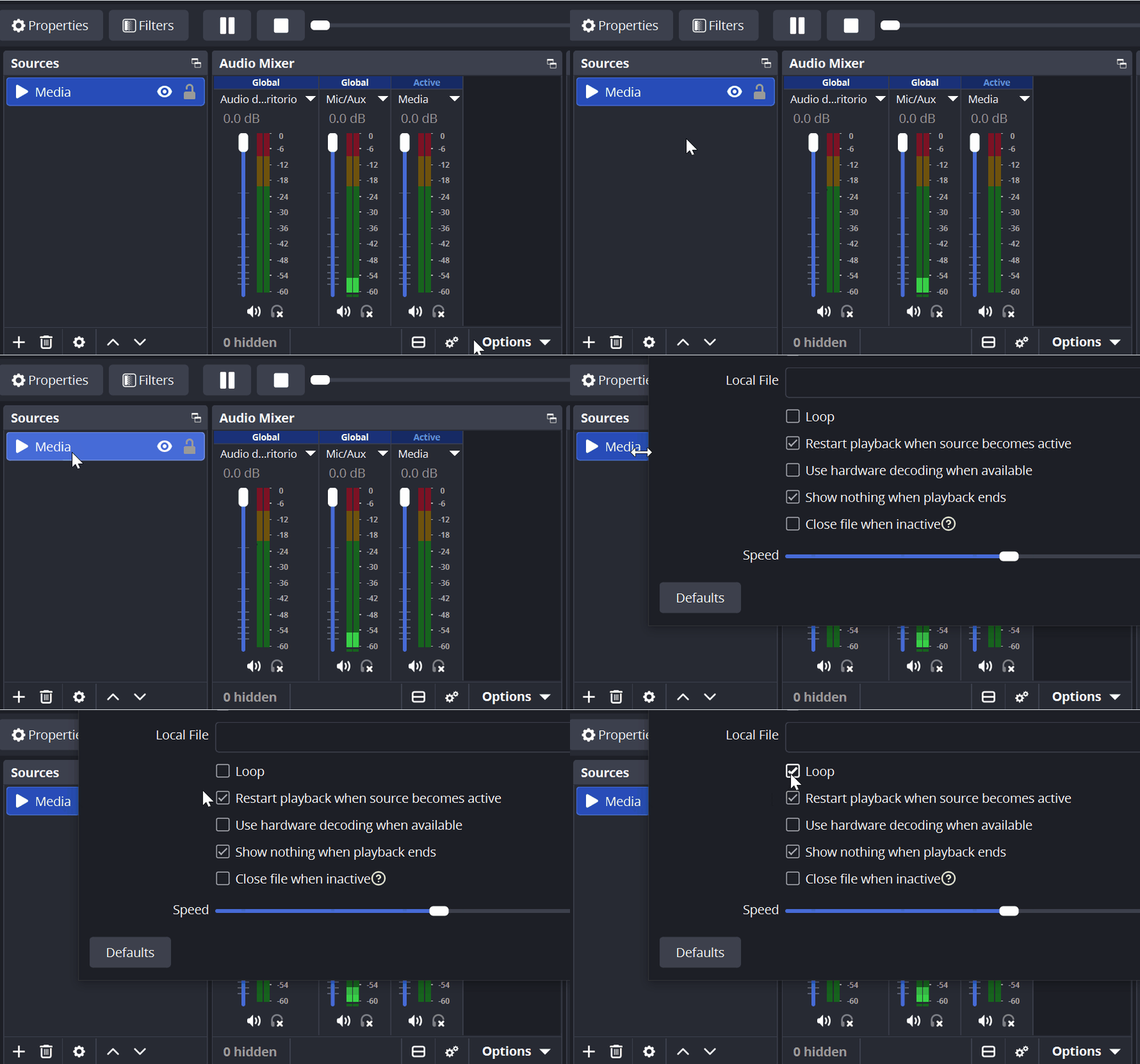
If your animated background or webcam frame turns black after a few seconds, it likely means the Loop option is not enabled.
How to fix it: Double-click your Media Source and enable the Loop checkbox. This ensures the animation plays continuously without interruption.
2. The "Safety" Button (Lock)
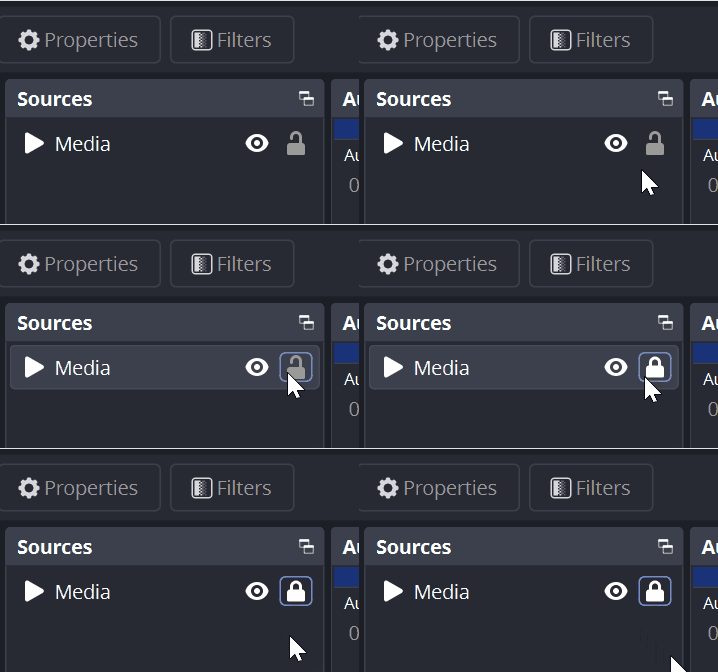
Have you ever accidentally moved your camera while adjusting another element? The lock feature prevents this.
How to use it: In the Sources panel, click the lock icon (🔒) next to each element. Once locked, the source cannot be moved unintentionally.
3. Save Your PC's Resources
Avoid letting unused overlays consume system performance while you’re streaming or gaming.
How to optimize: In your Media Source properties, enable “Close file when inactive.”
This ensures OBS only uses resources for elements that are currently visible.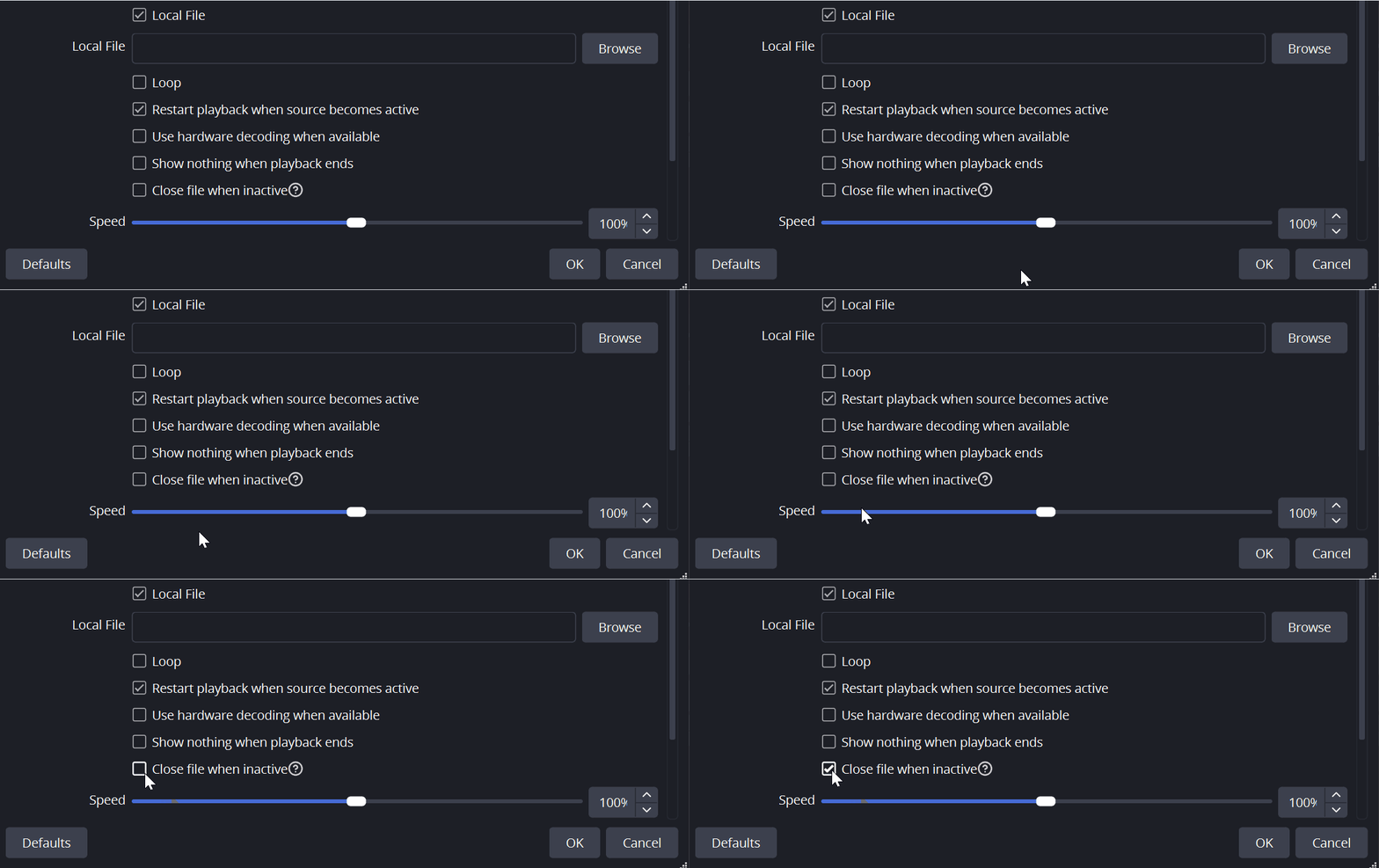
4. Control Your Audio Levels
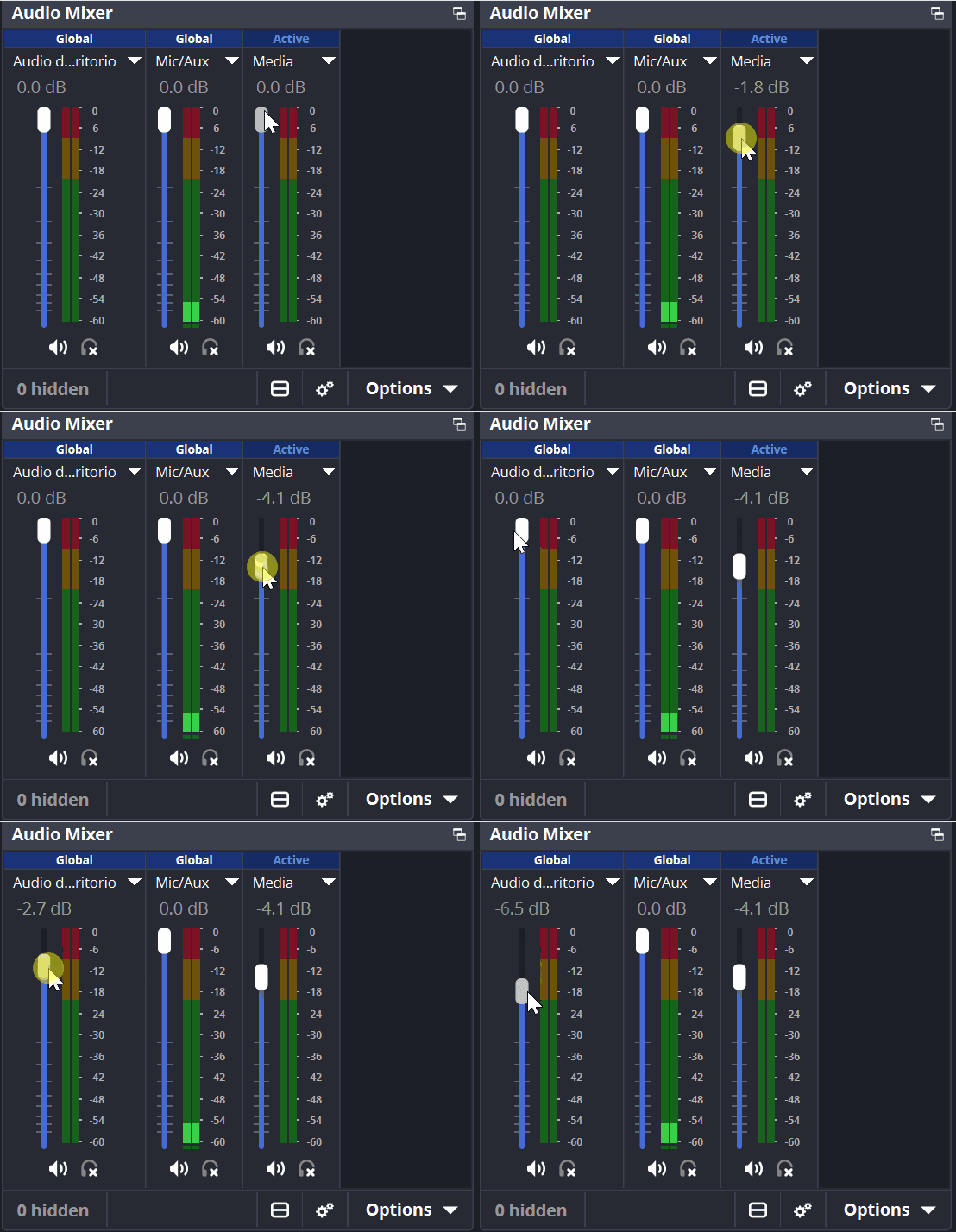
Many overlays include background music or ambient sounds. If the volume is too high, it can overpower your voice.
How to adjust: Go to the Audio Mixer (center panel in OBS) and lower the volume slider for your overlay sources until your microphone remains clear and dominant.
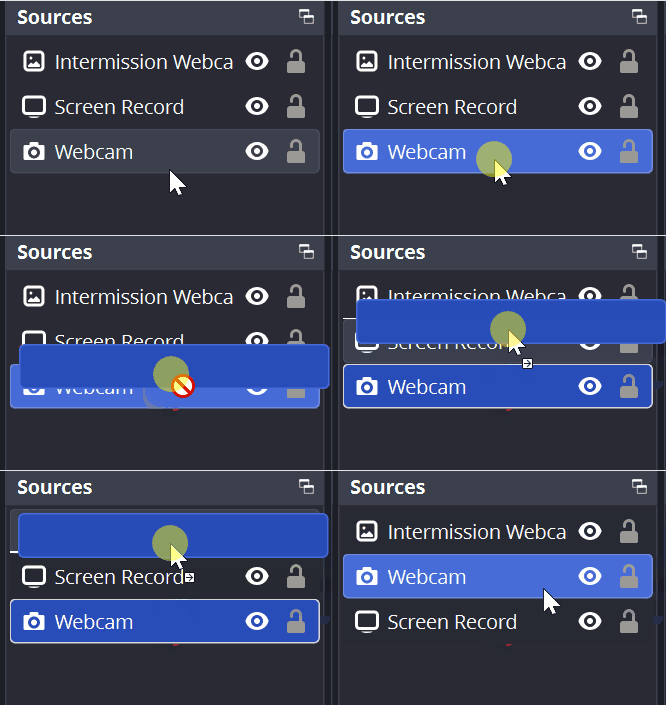
5. Layer Order Matters
OBS works like a stack of layers — elements at the top are displayed in front.
How to fix visibility issues: If your game source is covering your camera, simply drag your camera source to the top of the list in the Sources panel.
⚠️ Golden Rule: Once your setup is perfectly arranged, go to the top menu and select: Scene > Lock Preview. This will lock your entire layout, preventing accidental changes with a single click.
Any other questions? Get in touch