Camera & Color Settings
How to Use Masks (For Custom-Shaped Frames)
If your overlay includes a black and white image labeled “Mask,” it’s used to give your camera a specific shape (circular, rounded corners, etc.).
Step-by-Step: Using Custom Frames
Select Your Camera: In the Sources panel, right-click on your camera source and select Filters.
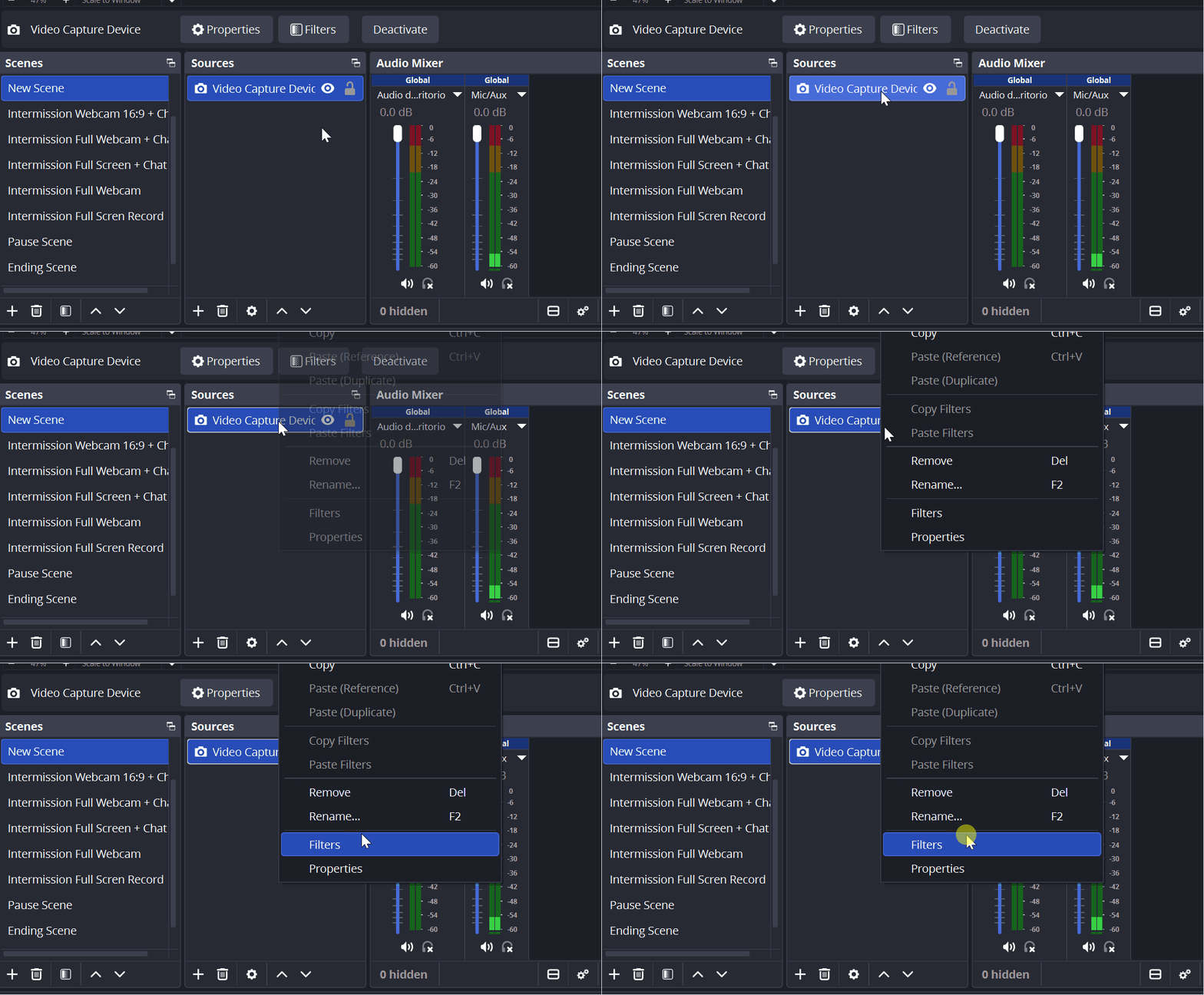
Add the Filter: Click the
+button at the bottom left and choose Image Mask/Blend.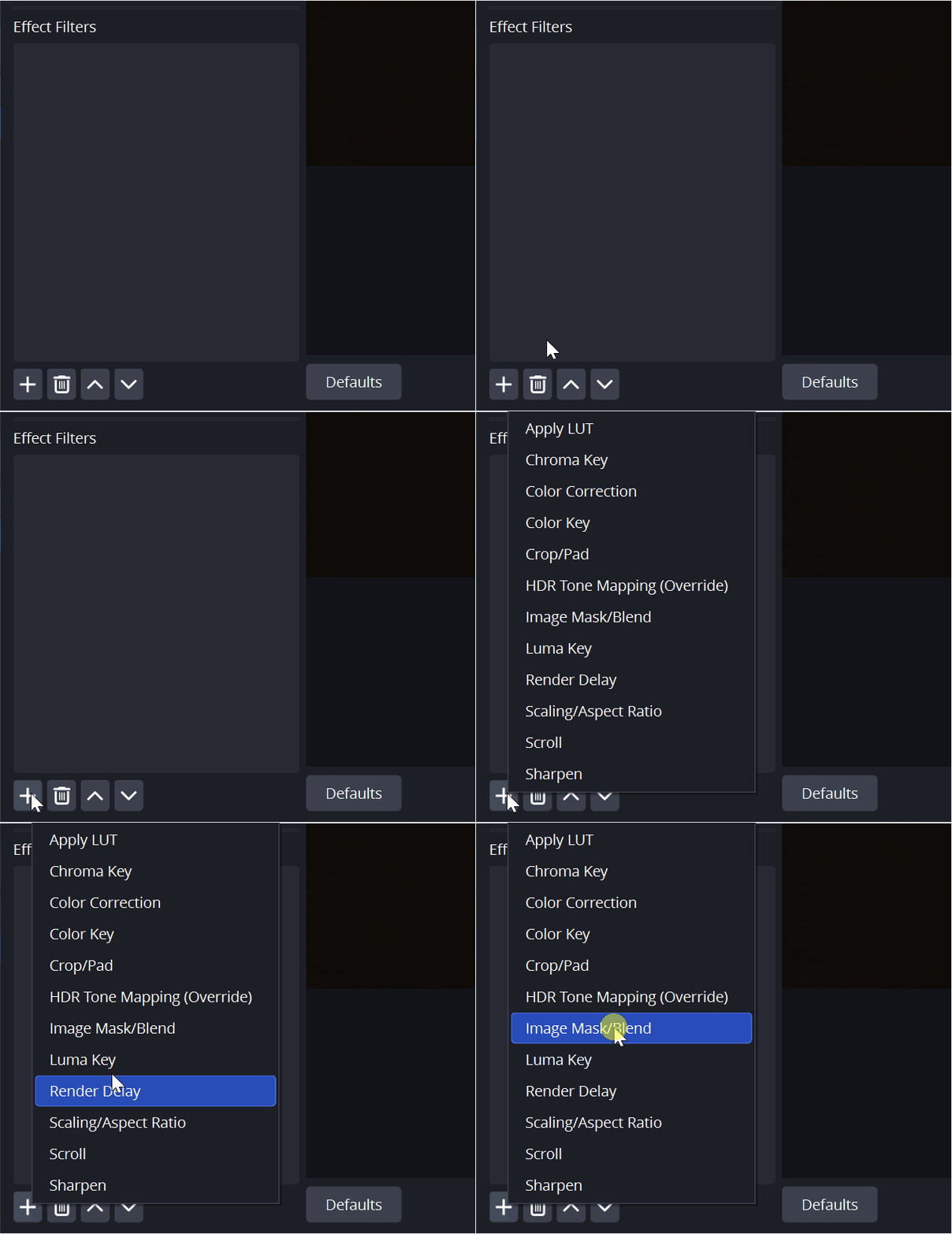
Configuration:
Type: Select “Alpha Mask (Color Channel)”.
Path: Click Browse and locate the mask file (the black and white image) inside your overlay folder.
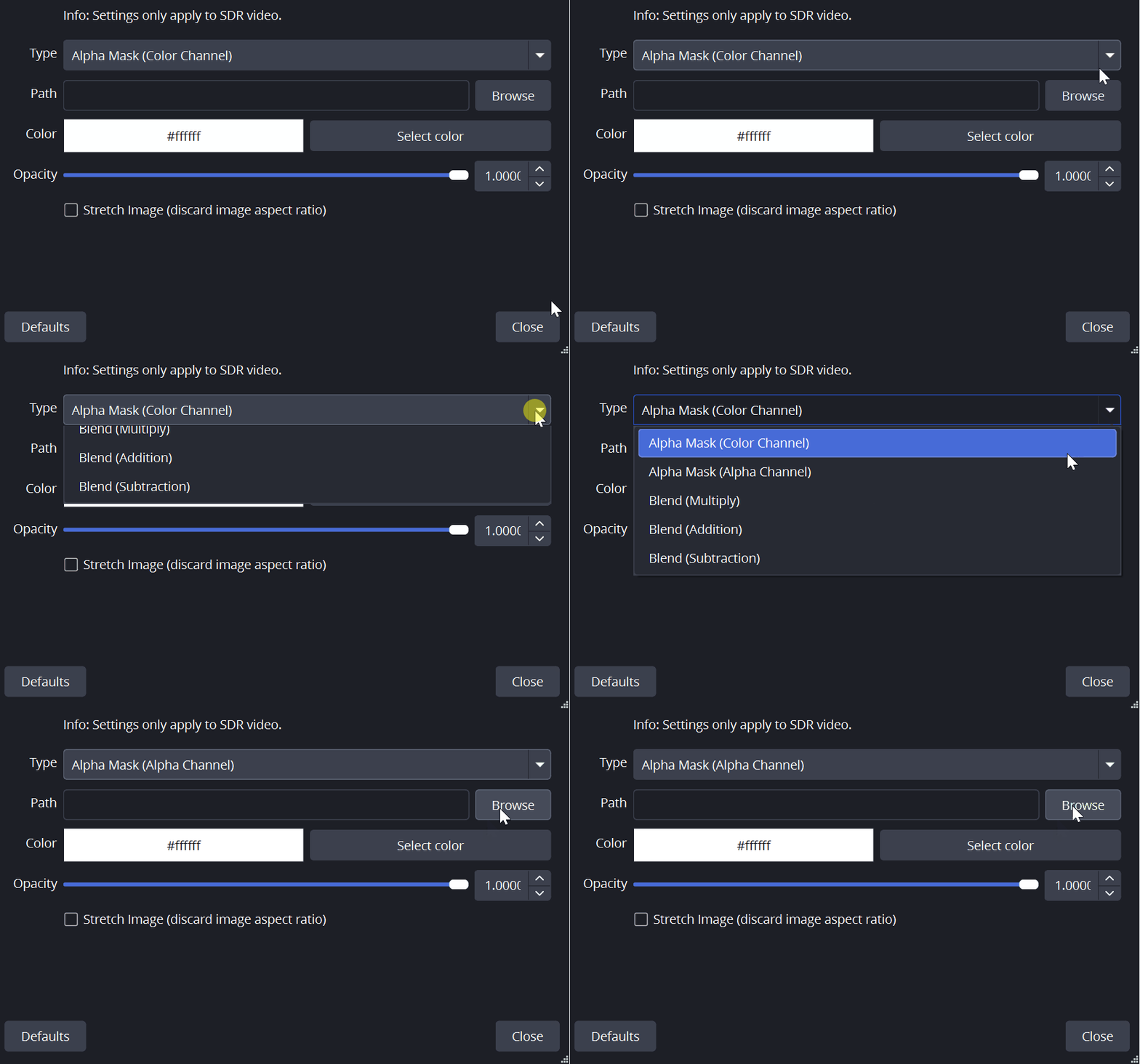
Done! Your camera will now take the shape of the mask. White areas of the image will remain visible, while black areas will become transparent (cropped out).
Pro Tip: If your camera appears stretched or too small, adjust the size of your camera source in OBS before applying the mask. This ensures it matches the proportions of the mask correctly.
Any other questions? Get in touch