Getting Started
Automatic Installation (Recommended)
Set up your entire streaming setup in seconds and start streaming instantly.
Recommendation: Before importing, make sure your overlay folder is in its final location. Moving the folder after importing may result in missing assets or black screens within OBS.
Phase 1: File Preparation
Location: Move the downloaded .zip file to the root directory of your
Local Disk (C:).File Extraction: Right-click the
.zipfile and select “Extract Here.” This will create a new folder with the name of your product.
Phase 2: Importing into OBS Studio
Open OBS Studio and go to the top menu:
Scene Collection>Import.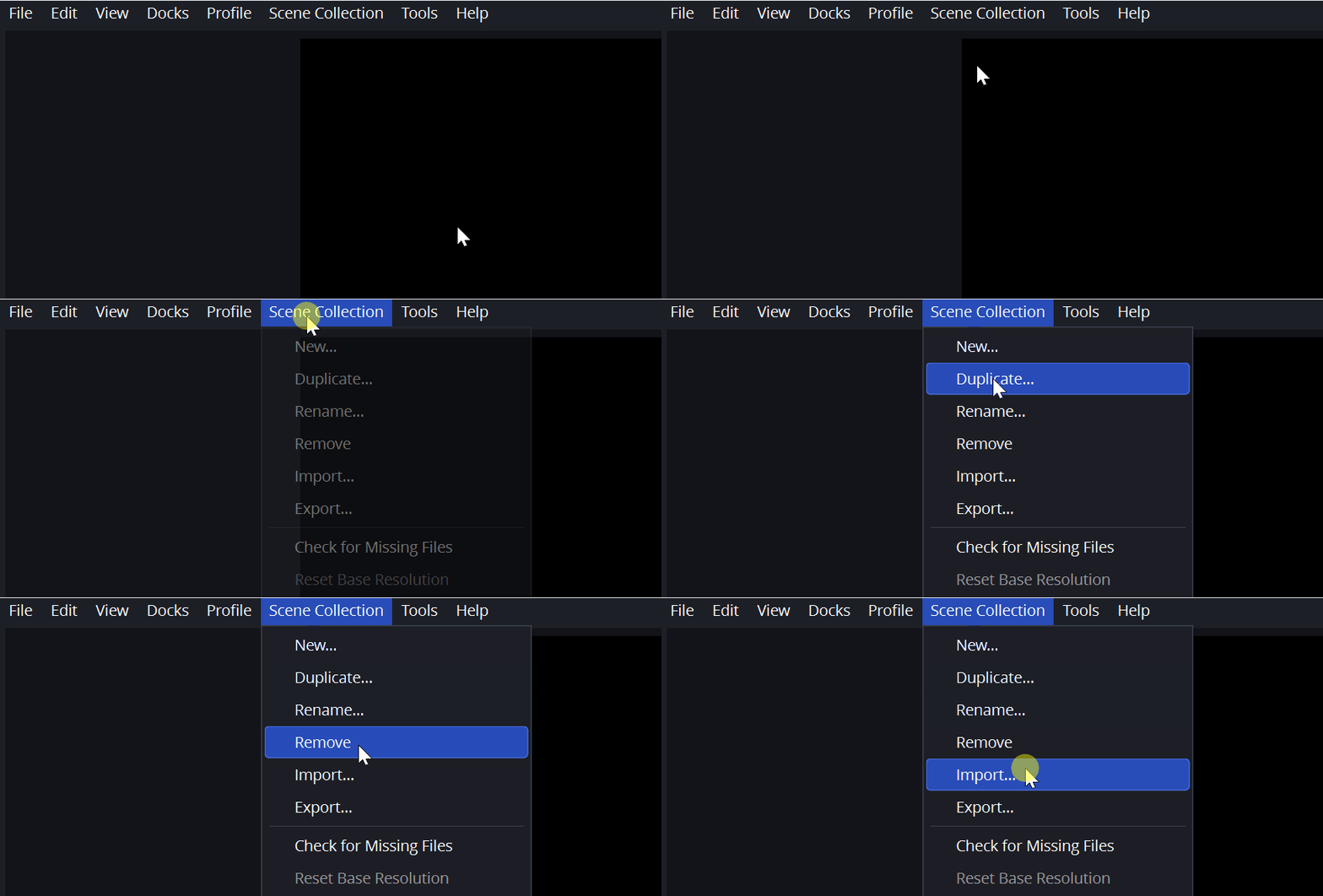
Click the three-dot button
(...)and locate the.jsonfile inside the folder you just extracted on your C: drive.Click "Import" to proceed.
Phase 3: Activating the Setup
Once imported, go back to the
Scene Collectionmenu.Select the newly imported overlay pack from the list.
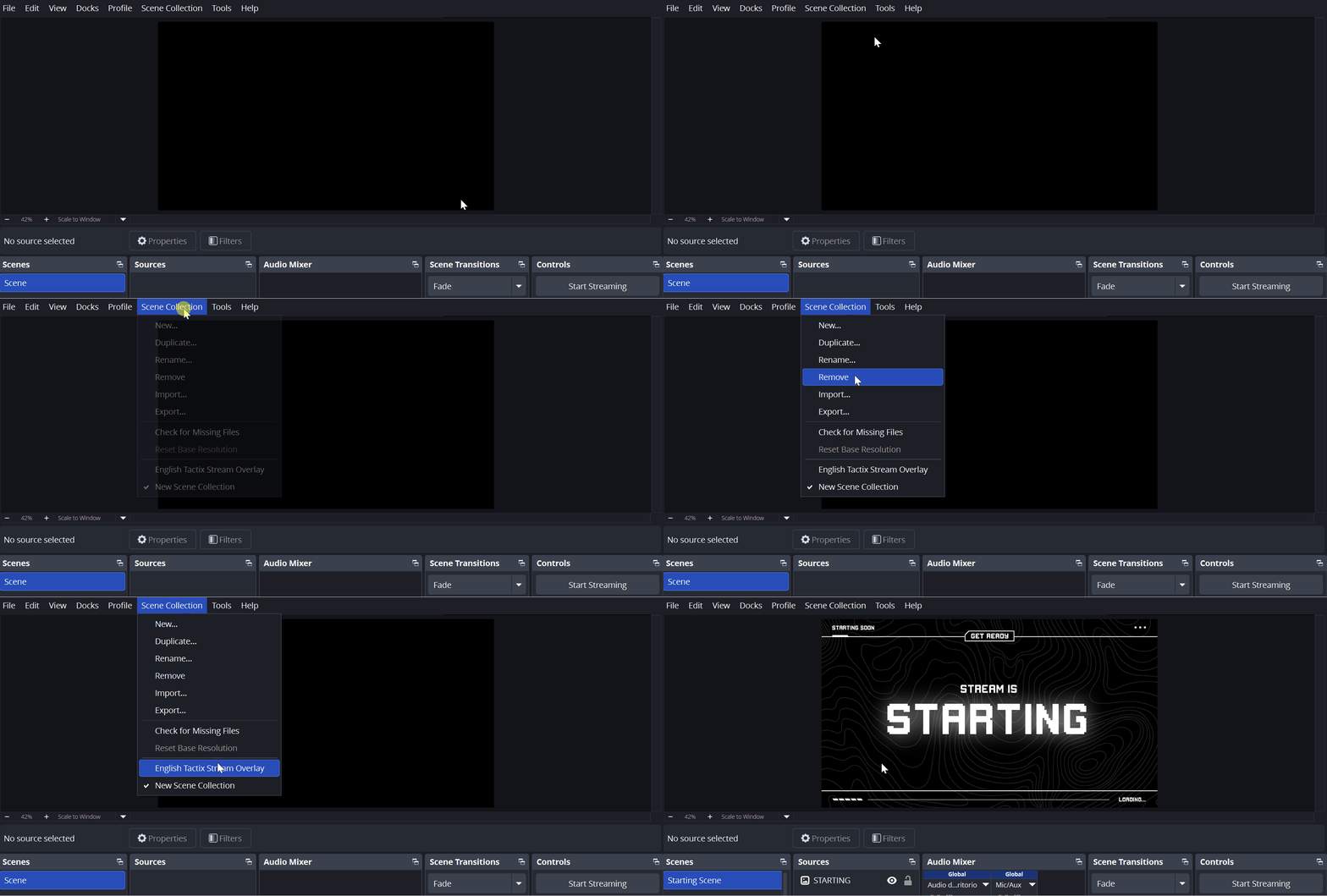
That’s it! Your scenes, sources, and technical settings will load automatically.
What is the .json file?
The.jsonfile acts as a configuration blueprint for OBS. It defines the location of all media assets (such as videos, images, and alerts) and applies the appropriate streaming settings, including bitrate and resolution, ensuring your setup functions correctly from the start.
Any other questions? Get in touch