Getting Started
Manual Installation
Use this method if you want to add specific elements to an existing setup.
You already have a custom layout and only want to integrate OverBox's specific elements? Follow these steps to manually import each asset and configure loop and performance settings for optimal results.
Preparation: Extract the downloaded
.zipfile to your preferred location and open the folder corresponding to your desired language.Create a Scene: In OBS Studio, go to the Scenes panel and click the
+button to create a new scene. (Example: "Starting Scene").Add an Image or a Media Source:
In the Sources panel, click the
+button and select Media Source (for videos) or Image (for png files).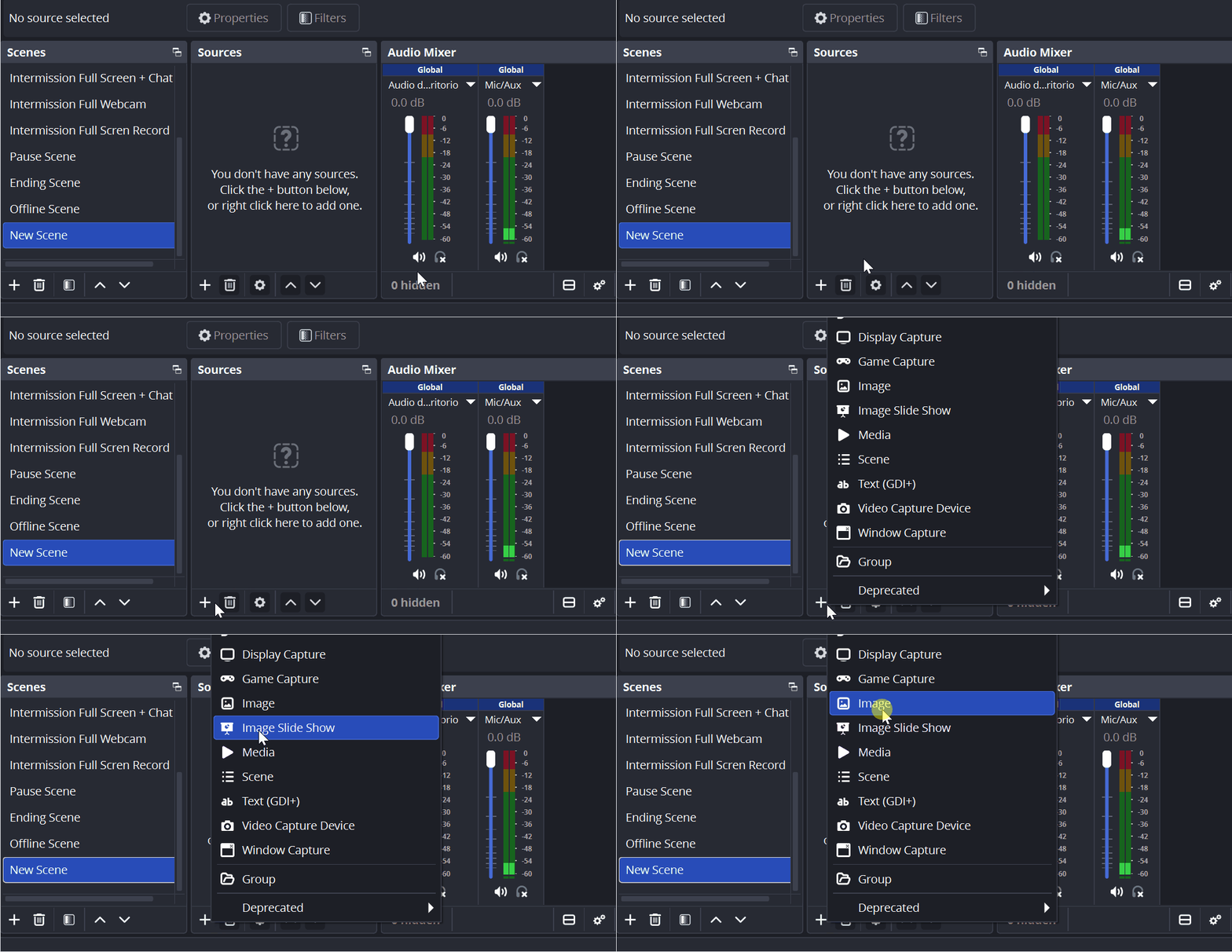
Assign a clear and descriptive name. (e.g., “Starting_Video”).
Click Browse and locate the video file inside the folder from your downloaded package.
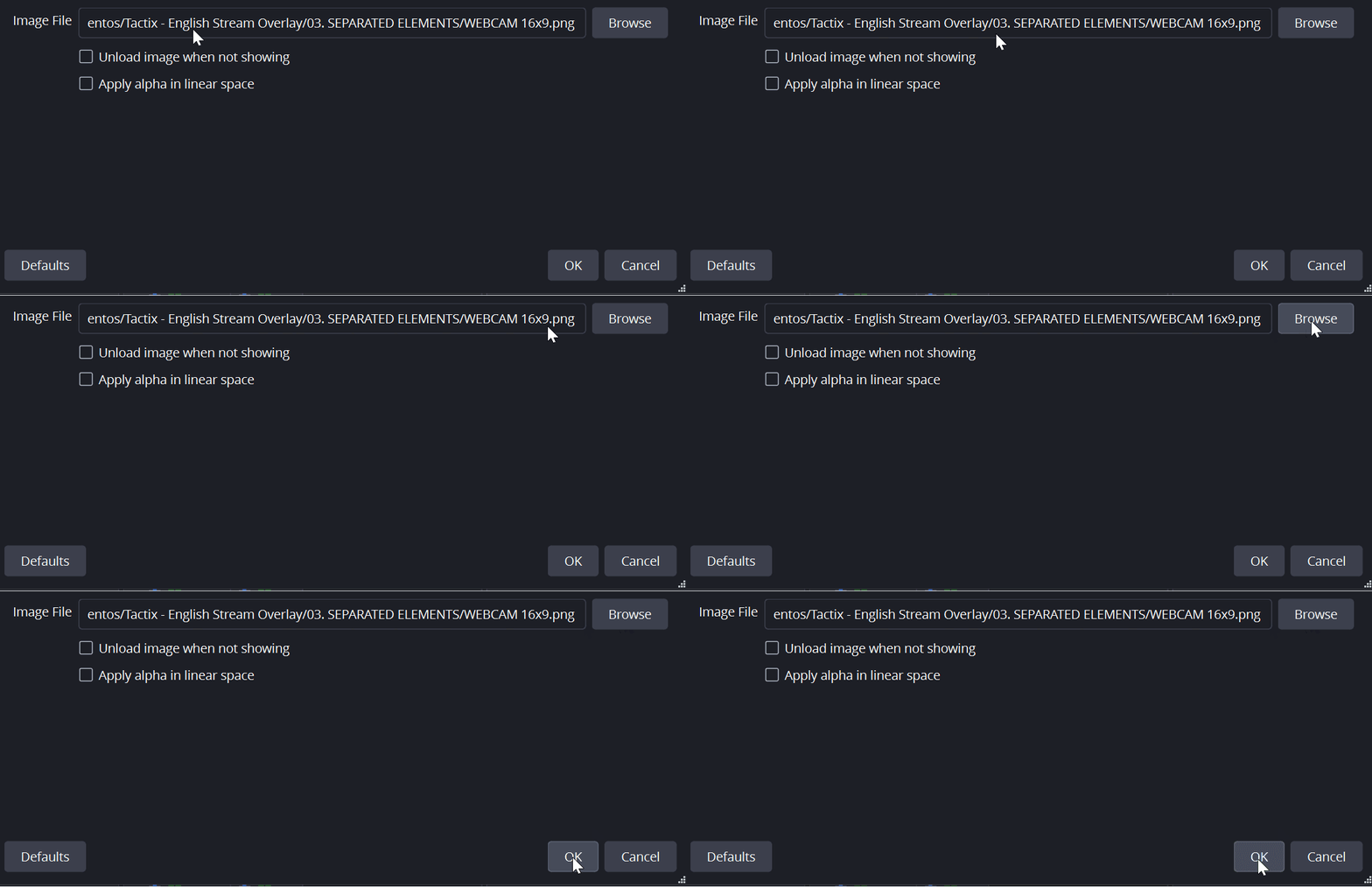
Important: If you add a Media Source, make sure to enable the “Loop” option to ensure the overlay plays continuously and does not disappear.
Repeat the process: Apply the same steps to add your alerts, webcam frames, and any additional overlay elements to their corresponding scenes.
Organization Tip: We recommend using the lock icon (🔒) in the Sources panel once you have positioned an element. This prevents accidental movement while you continue building and adjusting your layout.
Any other questions? Get in touch